Get Started
From an empty account to your first scheduled service. Work straight down — each step needs the one before it.
Sign in and find your way around
Ministry Order works in three places, all on the same account: the iPhone app, the Android app, and the web dashboard at ministryorder.com. Plan on whichever you prefer — most leaders set things up on the web and check them on their phone.
You'll see up to four areas: My Schedule (what you're serving on), Events (every service), People, and Manage Data (your teams and settings). Volunteers only see the first two.
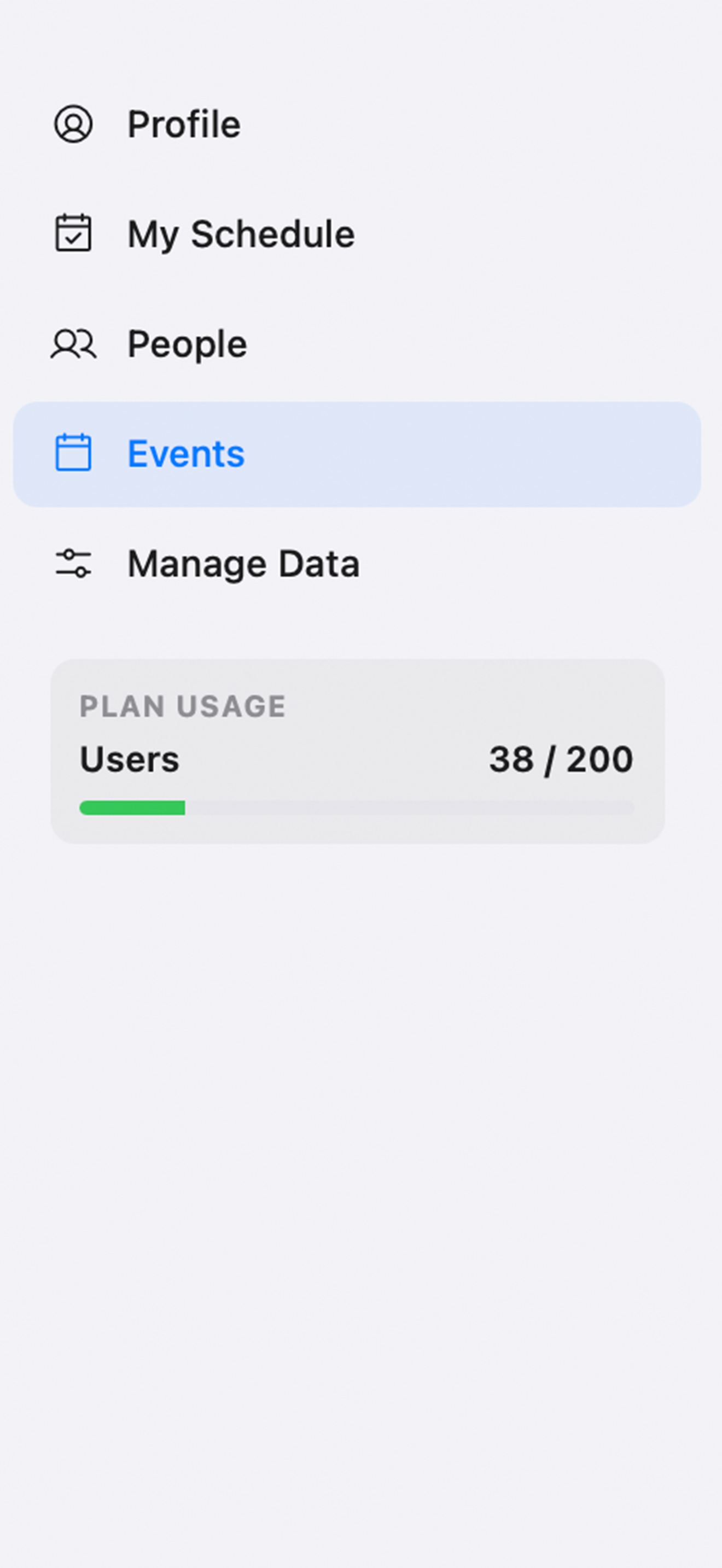
The web dashboard, showing the main navigation.
Set your time zone
Do this before you create anything. Go to Manage Data → Time Zone and pick your church's zone.
Every service time you type is stored and displayed in this zone for everyone. Set a 7:00 PM service and a volunteer travelling abroad still sees 7:00 PM — the app never shifts times to their local clock.

Changing the time zone later doesn't move events you've already created — it changes how their times are read. Thirty seconds now saves a confusing afternoon later.
Create your first team
A team is a department — Worship, Production, Ushers, Kids. Go to Manage Data → Teams → + Add Team and name it.
Start with one. You can add the rest once you've seen how a single team flows through to Sunday.

Add positions to that team
Positions are the jobs inside a team — Drummer, Camera Operator, Greeter. Tap your team, open Manage Positions, type a name, press Add. That's it.
Each position has a spots count — how many people you need doing that job. One Sound Engineer, six Ushers.

If your camera operators are interchangeable, make one Camera Operator with 5 spots. If Camera 1 and Camera 3 are genuinely different jobs, make them separate positions. Both work — pick whichever matches how you brief people.
Add your people
Go to People → Add Person. Enter a name, and an email if you want them to be able to log in.
- With an email — they can sign in, get notifications, accept or decline, and set blackout dates.
- Without one — they're a name you can schedule, but can't respond. Fine for someone who doesn't want the app.
They then download the app and sign up with that same email address, and they're connected to your church automatically.

If someone signs up with a different address than the one on their record, they'll land in an empty account. Delete the record and re-add it with the address they actually used.
Build the team's roster
Open your team and go to Manage Roster. Tick everyone who serves on that team.
This is what makes them appear when you're scheduling, and what lets them claim open spots themselves.
To let someone run the team without giving them the run of the whole church, mark them Leader on their row. They can then assign people, set call times, and send requests for that team only.

The Leader pill on a roster row scopes someone to that one team. It only takes effect once their overall role in People is set to Leader — marking a Volunteer does nothing. See the full guide for the whole permissions picture.
Create your first event
From Events, tap +. Name it, pick a folder (Sunday Services is a good first one), set the date and start time.
Two switches decide what carries over from your last event: Copy teams and Copy order. On your very first event there's nothing to copy, so leave them however you like.

Add the team and schedule people
Open the event. In the Teams section tap + and choose your team — it appears as a card.
Tap the card to set the call time (when that team arrives, not when the service starts), then fill each position. Anyone on the roster shows first.
Leave a position empty and it shows as Needed, which volunteers on that team can claim themselves.

Nobody is notified when you assign them. Assignments sit in draft so you can change your mind freely. When you're ready, open the team card and tap Send Pending Requests — that's the moment volunteers hear about it.
Build the running order
In the Order section, tap Add Item for each part of your service. Give it a segment (Prayer, Worship, Sermon), a title, and a duration.
Start times calculate themselves — change one duration and everything below shifts. For a worship set, add your songs with keys and lengths and the total works itself out.

Segments are the grey labels down the left. If the dropdown is empty, add a few in Manage Data → Segments — Prayer, Worship, Announcements, Sermon, Offering.
Tell your volunteers what to expect
Send them this, and you're done:
- Download Ministry Order and sign up with the email address the church has for you.
- Open My Schedule and tap Accept or Decline on anything waiting.
- Add dates you're away under Profile → Blackout Dates.
- If your team needs someone, it shows under Open Opportunities — tap Accept to take it.

What a volunteer sees when a request arrives.
That's your first Sunday scheduled.
Next week takes about two minutes — create the event with Copy teams on, adjust who's serving, and send.
Read the full guideThe complete guide covers every screen in detail, including Live mode, PDF exports, and the common questions. Or email support@node78.com and tell us what you were doing.